Endacopia PC requirements, the legacy Windows listing and no sound after loading
Endacopia's store page lists older Windows versions and displays Steam's modern Windows support notice, plus the official full-game volume shortcuts from the 1.07 notes for a game that stays silent.
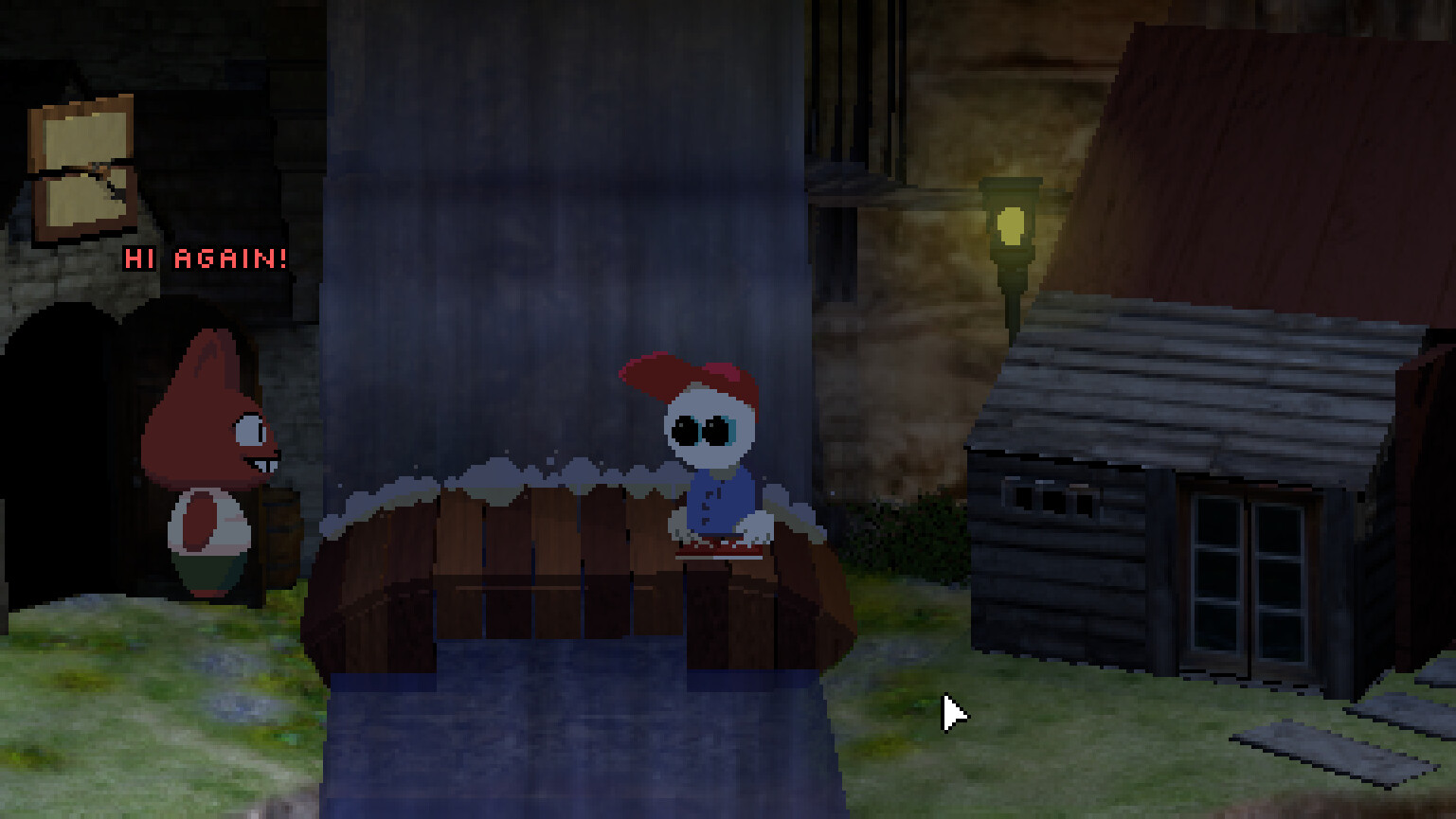
Answer: Endacopia lists Windows 7, Vista and XP while the current Steam client supports Windows 10 and later; these are different requirements. For a game that stays silent, the full game's 1.07 news post publishes named volume shortcuts; they are published steps, not a guaranteed fix or a result we tested.
Published minimum specification
- Operating system: Windows 7, Vista or XP, 32-bit or 64-bit as listed
- Processor: Pentium 4 at 3.0 GHz
- Memory: 2 GB RAM
- Graphics: 128 MB graphics memory and Shader Model 2 support; ATI X800 or NVIDIA 6600 or better as listed
- DirectX: version 9.0c
- Storage: 2 GB available space
- Audio: DirectX 9.0c-compatible sound device
The important Steam-client distinction
The same page includes a Steam notice that, from 1 January 2024, its client supports only Windows 10 and later. A legacy minimum specification for the game and support for the current distribution client are different requirements.
Do not treat the Windows XP, Vista or 7 text as proof that a current Steam installation is supported there. We have not tested an old operating system, offline workaround or alternative distribution build.
Input and platforms
The official description requires keyboard and mouse. The reviewed listing supports a Windows PC record; this archive does not infer native macOS, Linux or console builds from low hardware requirements.
No sound after loading: the official volume shortcuts
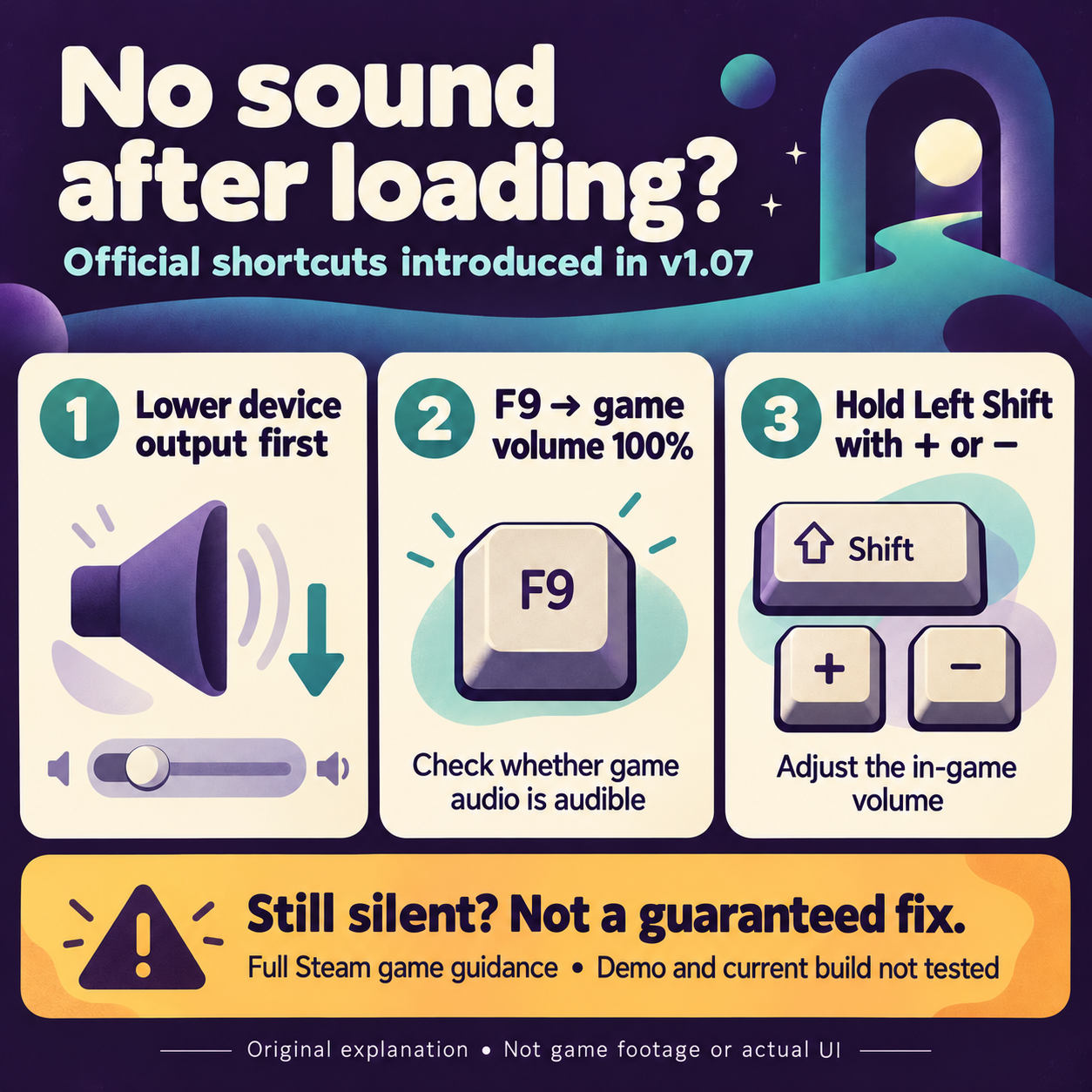
- Start from the named official notes. The F9 and Left Shift inputs are published in the Steam full game's version 1.07 news post. That post is not the newest one — version 1.08 is also listed — and a later post that does not repeat the inputs is not proof they work on every later build. We have not tested an installed copy.
- Press F9 to set game volume to 100%, then actually check whether you can hear the game. 100% is the value the notes state, not a level we recommend leaving your output at. Lower your speaker or device volume first, so the jump is not unexpectedly loud.
- Hold Left Shift and press + or − to raise or lower the volume.
If it is still silent, that alone does not show a broken save, and we cannot promise a driver, device or system-mixer cause is fixed. Take the problem back to official support rather than deleting saves. The notes cover the full game and are not confirmed for the separate demo.
Before installing
Review the current official listing and Steam support requirements, then compare your own computer. These figures are publisher-provided specifications, not a benchmark or a guarantee for every driver and device. The separate demo may have different coverage and should not be used to prove all full-game requirements.
Was this answer useful?
Choose one. Your selection stays on this page and is only sent to Google Analytics if you have allowed analytics.
Sources & verification
- Steam — description, demo, input and PC requirementschecked 2026-10-08 · Official US-English store listing; no independent playtest.
- Official promotional gallery contextchecked 2026-10-11 · Image context only; original answer-source dates remain unchanged.
- Steam news — full-game 1.07 volume notes, 1.08 also listedchecked 2026-10-20 · Read 20 October 2026: 1.07 published F9 volume 100% and Left Shift with +/-; 1.08 also listed. No install test.
- Steam community discussion — no sound after loading, 0 replieschecked 2026-10-20 · Read 20 October 2026: unanswered post, 0 replies, mute at title screen then reload still silent. No developer fix stated.
Spotted an error? Submit a correction.